






A desperate step into the depths of Minecraft: the first account registration
Even after many years, Minecraft continues to lead the pack among sandbox games. With its endless journeys, dynamic world generation, and robust multiplayer mode, it offers limitless opportunities for creativity. Let's dive into the initial steps to start your Minecraft adventure.
Table of Contents
- Creating a Minecraft Account
- How to Start Your Journey
- PC (Windows, macOS, Linux)
- Xbox and PlayStation
- Mobile Devices (iOS, Android)
- How to Exit Minecraft
Creating a Minecraft Account
To begin your Minecraft journey, you'll need to create a Microsoft account, which is used to log into the game. Head to the official Minecraft website, and locate the "Sign In" button in the upper right corner. Click it to open the authorization window, then select the option to create a new account.
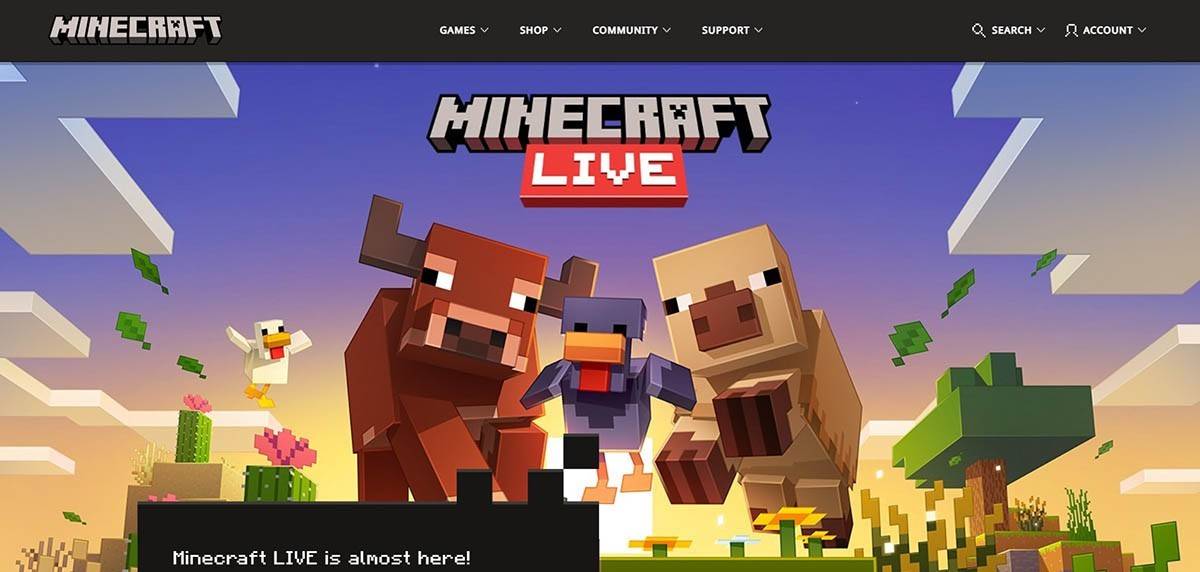 Image: minecraft.net
Enter your email address and create a strong password for your Minecraft account. Choose a unique username; if it's already taken, the system will suggest alternatives.
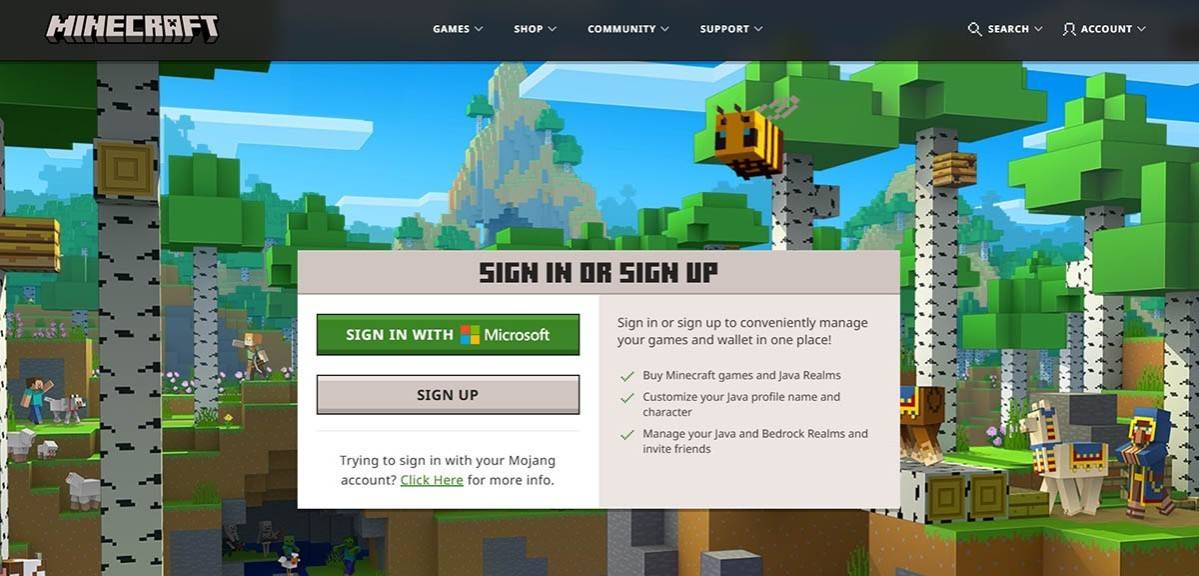 Image: minecraft.net
After setting up your account, confirm your email address by entering the code sent to your specified email. If the email doesn't arrive promptly, check your "Spam" folder. Once verified, your profile is created and linked to your Microsoft account. You can then purchase the game if you haven't already. Choose your preferred version from the store on the website and follow the instructions to complete the purchase.
How to Start Your Journey
PC (Windows, macOS, Linux)
On PC, you have two main versions of Minecraft: Java Edition and Bedrock Edition. Java Edition is compatible with Windows, macOS, and Linux and can be downloaded from the official Minecraft website. After installing the launcher, log in with your Microsoft or Mojang account and select the game version to launch.
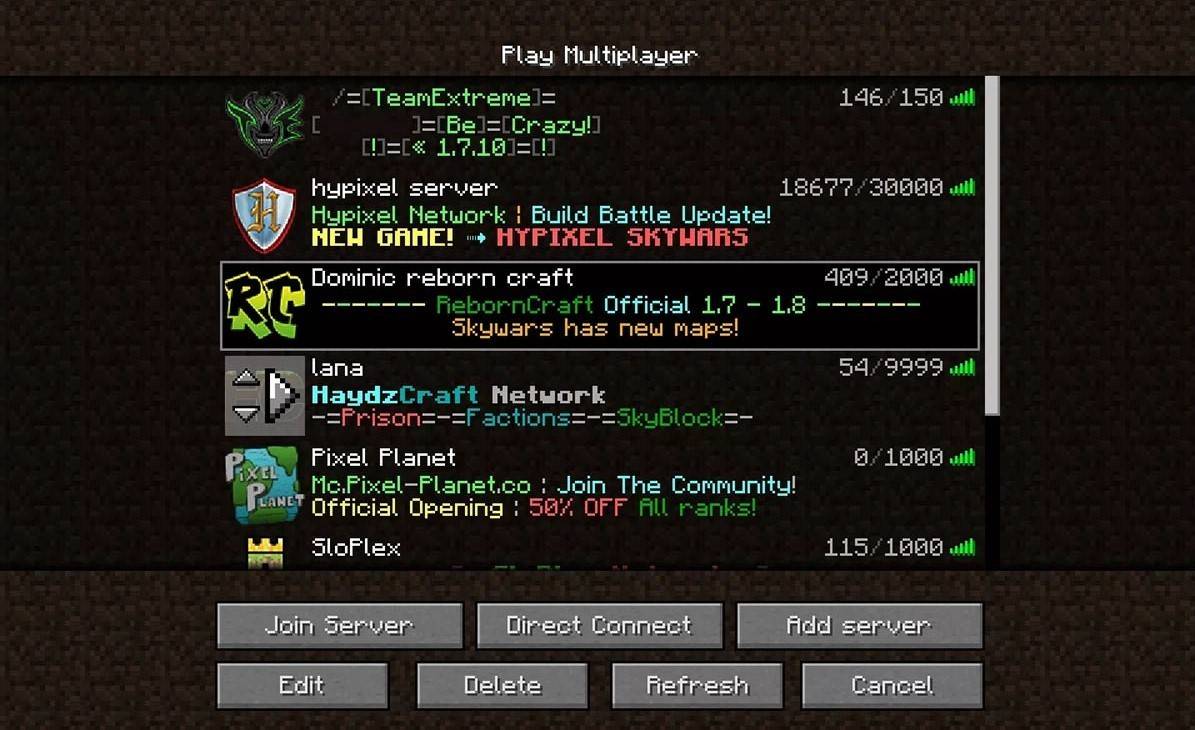 Image: aiophotoz.com
Upon your first launch, an authorization window will appear. Enter your Microsoft account credentials and log in. For solo play, click the "Create New World" button. You'll be taken to a world settings menu where you can choose between "Survival" mode for the classic experience or "Creative" mode for infinite resources.
To play with friends, navigate to the "Play" section in the main menu and select the "Servers" tab. Here, you can join a public server or enter the IP address of a private server if you have an invitation. To play with friends in the same world, create or load a world, then enable the multiplayer feature in the settings.
Xbox and PlayStation
For Xbox consoles (including Xbox 360, Xbox One, and Xbox Series X/S), download Minecraft from the Microsoft Store. After installation, launch the game from your console's home screen. Log in with your Microsoft account to sync achievements and purchases.
 Image: youtube.com
Minecraft is also available on PlayStation 3, PlayStation 4, and PlayStation 5. Purchase and download it through the PlayStation Store. After installation, launch it from the console's home screen. Log in with your Microsoft account to enable cross-platform play.
Mobile Devices (iOS, Android)
You can purchase Minecraft through the App Store for iOS or Google Play for Android. After downloading and installing the app, log in using your Microsoft account. The mobile version supports cross-platform play with other devices.
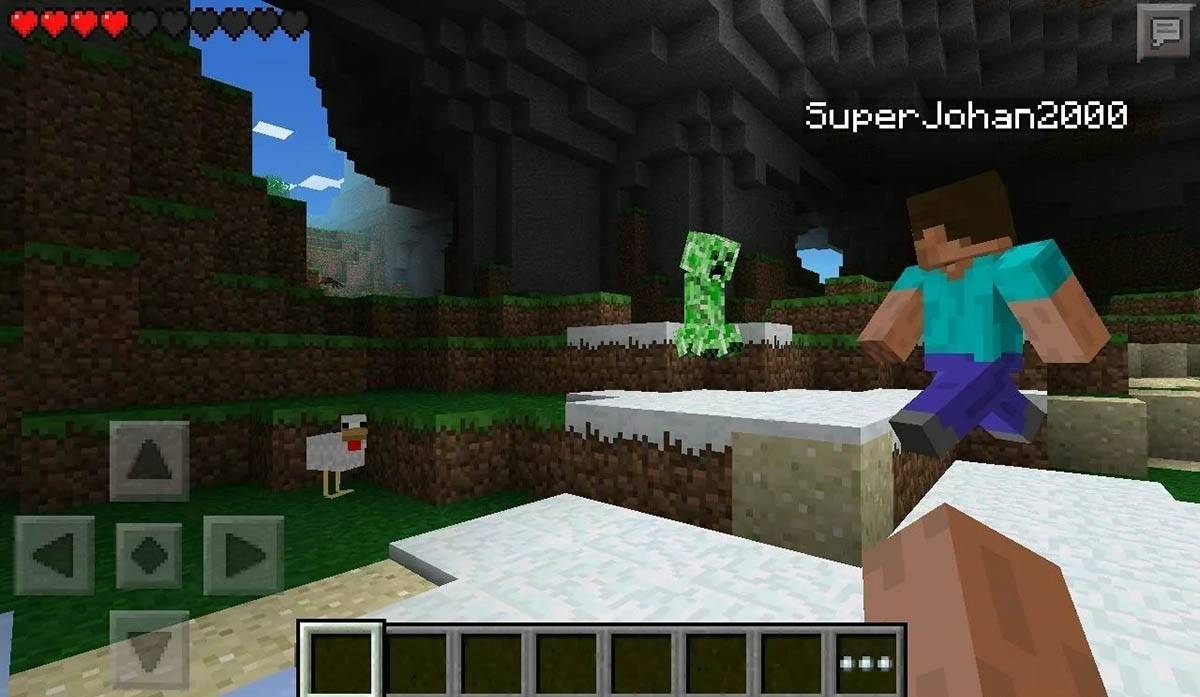 Image: storage.googleapis.com
It's worth noting that Bedrock Edition supports cross-platform play across all mentioned devices, allowing players to connect regardless of their platform. Java Edition, however, is limited to PC and does not support cross-platform play.
The process of launching Minecraft varies by platform, but thanks to cross-platform play in Bedrock Edition, players can enjoy cooperative gameplay across various devices.
How to Exit Minecraft
Exiting the game is straightforward. On PC, press the Esc key to open the game menu, then click the "Save and Quit" button. This will return you to the main menu, from where you can close the program completely.
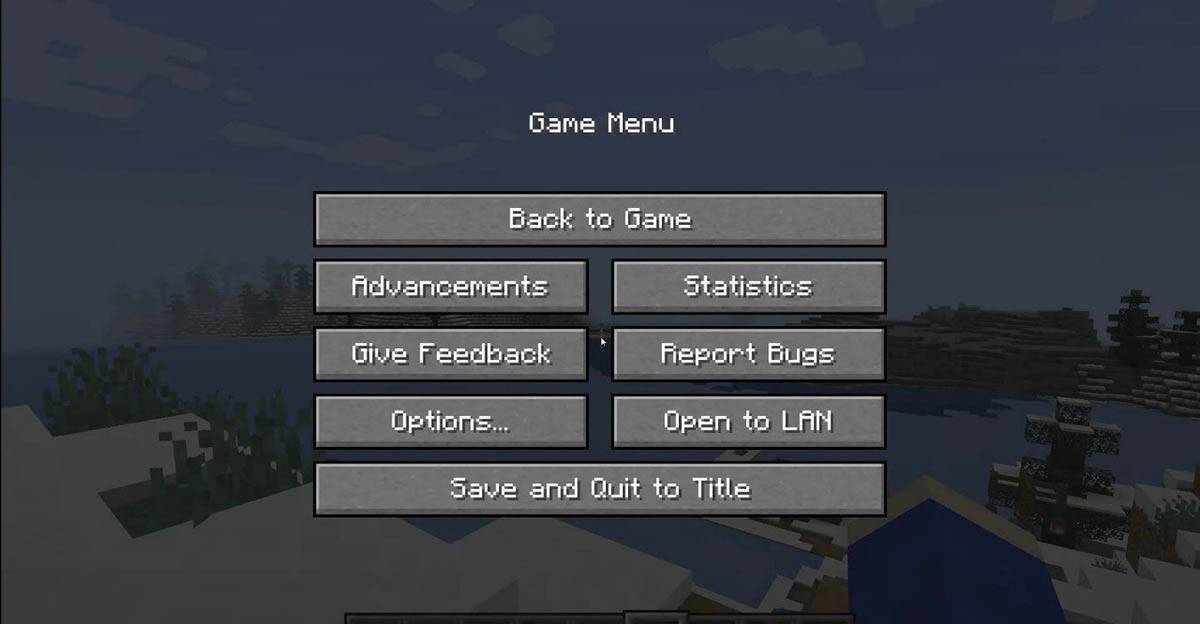 Image: tlauncher.org
On consoles, open the pause menu with the corresponding gamepad button and select "Save and Quit" to end your session. To fully close Minecraft, use the console's menu by pressing the "Home" button, highlighting the game, and selecting the exit option.
On mobile devices, the "Save and Quit" button is found in the game menu. To fully close the game, exit the app through your device's system menu. On Android, swipe up from the bottom of the screen and close Minecraft among the running apps. On iOS, double-press the "Home" button or swipe up and swipe the app up to close it.
Now that you're familiar with the basics, we wish you a fantastic time exploring and creating in the blocky world of Minecraft, whether you're playing solo or with friends across different platforms.
-
 Jan 11,25Teamfight Tactics drops patch notes for final update of Inkborn Fables in version 14.14 Teamfight Tactics Patch 14.14: Final Inkborn Fables Update Details Unveiled! Get ready for the final chapter of Inkborn Fables in Teamfight Tactics with patch 14.14! Riot Games has revealed exciting changes, including a significant increase in encounter frequency and adjusted encounter rates. Prepa
 -
 Feb 11,25Pokémon Go Celebrates New Year's 2025 Pokémon Go Rings in 2025 with a Festive New Year's Event and More! As 2024 concludes, Niantic is celebrating the arrival of 2025 in Pokémon Go with a special New Year's event. This precedes the Fidough Fetch event and the highly anticipated Sprigatito Community Day. Kicking off the new year is the
 -
 Jun 14,25Pokémon Launches Real Pokédex Encyclopedia Crafted by Ecologists and Behaviorists Get ready, Pokémon fans—The Pokémon Company is stepping into the world of science with a brand-new official encyclopedia written by expert animal ecologists and behaviorists. Discover what Pokécology has in store for trainers and researchers alike.Pokécology: An Official Encyclopedia For Pokémon Beh
 -
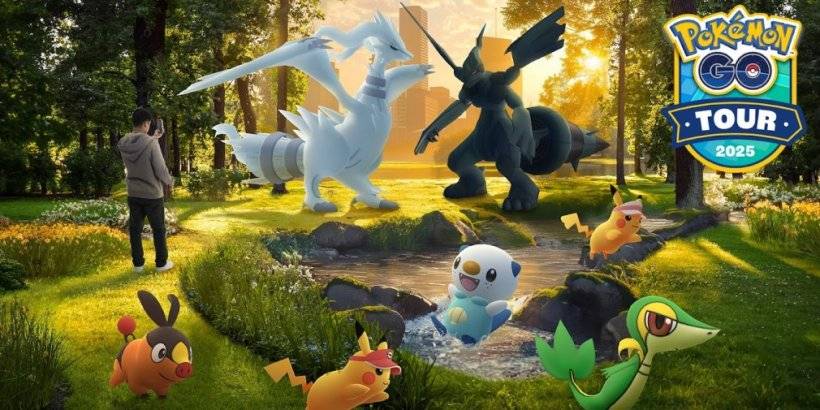 May 05,25Pokémon Go Tour: Unova Reveals Exciting New Details Get ready for an exciting journey as the Pokémon Go Tour: Unova approaches, bringing a host of new features and updates to the game. Whether you're a fan of new music, exclusive avatar items, or thrilling Special Research, there's something for everyone as you dive into the world of Unova and its Po