






"Guide: Saving Your Progress in GTA 5 and Online"
Quick Links
Grand Theft Auto 5 and GTA Online are designed with an autosave feature that effortlessly tracks your progress as you immerse yourself in the game. However, pinpointing the exact moment of the last autosave can be tricky. To safeguard your progress and avoid any potential setbacks, mastering manual saves and forced autosaves becomes essential. This comprehensive guide will walk you through the steps to save your game in both Grand Theft Auto 5 and GTA Online.
A telltale sign of an ongoing autosave is an orange circle rotating clockwise in the bottom-right corner of your screen. Though it's easy to overlook, spotting this circle assures you that your progress has been safely recorded.
GTA 5: How to Save
Sleep at a Safehouse
In GTA 5's Story Mode, securing a manual save is as simple as catching some Z's in a Safehouse. Safehouses are the primary and secondary homes of the game's protagonists, easily identifiable by the white house icon on the map.
Once inside a Safehouse, head to the protagonist's bed and initiate sleep by pressing:
- Keyboard: E
- Controller: Right on D-Pad
This action will open the Save Game menu, allowing you to save your progress.
Use the Cell Phone
For a quick save without the detour to a Safehouse, your in-game cell phone comes to the rescue. Here's how to save on the go:
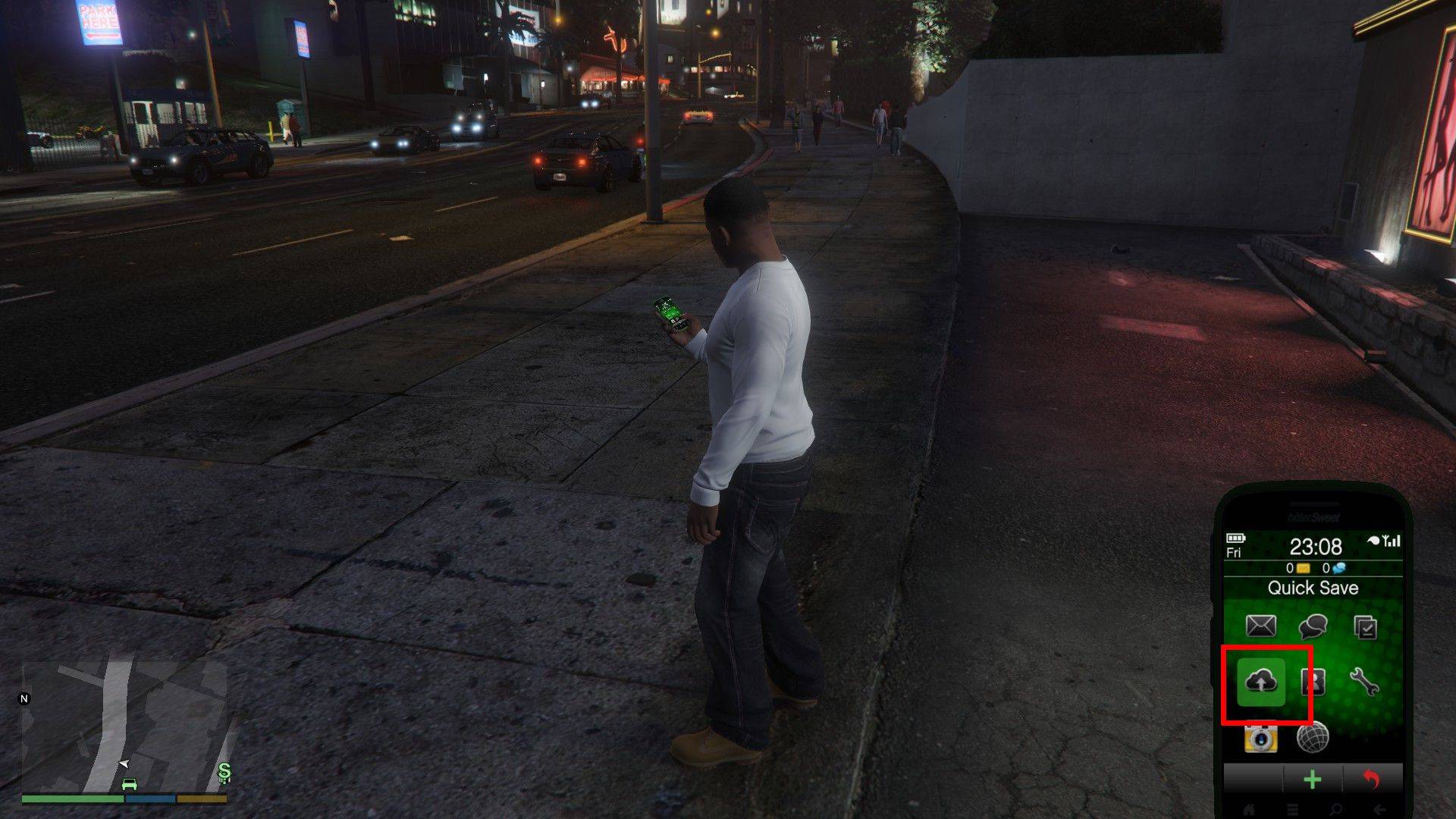
- Access your cell phone by pressing the up arrow key on a keyboard or up on a controller's d-pad.
- Tap the cloud icon to bring up the Save Game menu.
- Confirm the save and you're set.
GTA Online: How to Save
Unlike the Story Mode, GTA Online doesn't offer a manual Save Game menu. However, you can still trigger autosaves strategically to ensure your progress is preserved. Here are some effective methods:
Change Outfits/Accessories
A simple wardrobe change can force an autosave in GTA Online. Whether you're swapping a full outfit or just an accessory, follow these steps:
- Enter the Interaction Menu with M on a keyboard or the touchpad on a controller.
- Choose Appearance.
- Navigate to Accessories and switch out an item, or opt for a new Outfit.
- Exit the menu and watch for the spinning orange circle in the bottom-right corner, signaling a successful autosave. If it doesn't appear, repeat the process.
Swap Character Menu
Even without changing characters, accessing the Swap Character menu can initiate an autosave. Here's how to do it:
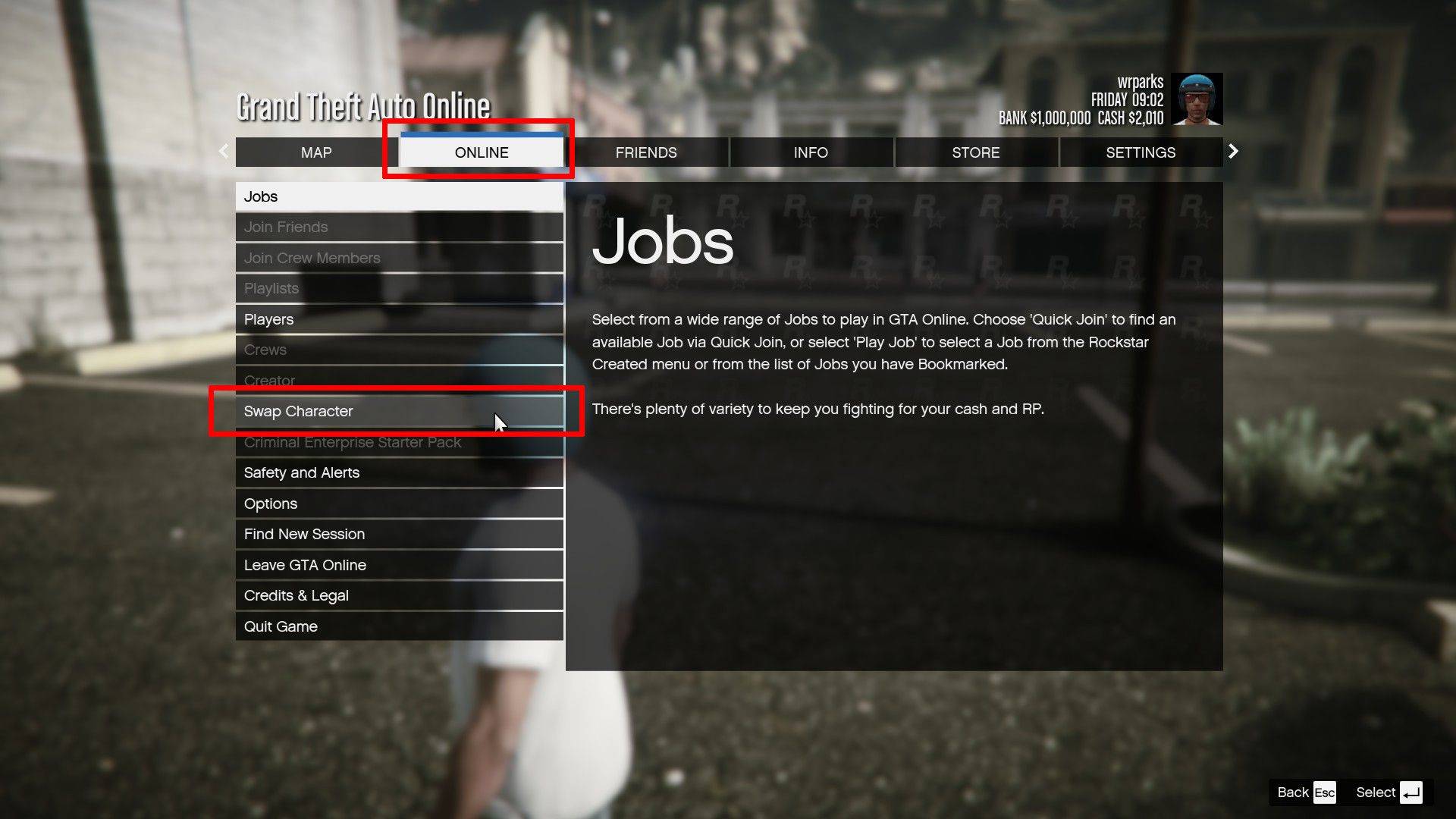
- Open the Pause Menu by hitting Esc on a keyboard or Start on a controller.
- Head to the Online tab.
- Select Swap Character to trigger an autosave.
-
 Jan 11,25Teamfight Tactics drops patch notes for final update of Inkborn Fables in version 14.14 Teamfight Tactics Patch 14.14: Final Inkborn Fables Update Details Unveiled! Get ready for the final chapter of Inkborn Fables in Teamfight Tactics with patch 14.14! Riot Games has revealed exciting changes, including a significant increase in encounter frequency and adjusted encounter rates. Prepa
 -
 Feb 11,25Pokémon Go Celebrates New Year's 2025 Pokémon Go Rings in 2025 with a Festive New Year's Event and More! As 2024 concludes, Niantic is celebrating the arrival of 2025 in Pokémon Go with a special New Year's event. This precedes the Fidough Fetch event and the highly anticipated Sprigatito Community Day. Kicking off the new year is the
 -
 Jun 14,25Pokémon Launches Real Pokédex Encyclopedia Crafted by Ecologists and Behaviorists Get ready, Pokémon fans—The Pokémon Company is stepping into the world of science with a brand-new official encyclopedia written by expert animal ecologists and behaviorists. Discover what Pokécology has in store for trainers and researchers alike.Pokécology: An Official Encyclopedia For Pokémon Beh
 -
 May 05,25Pokémon Go Tour: Unova Reveals Exciting New Details Get ready for an exciting journey as the Pokémon Go Tour: Unova approaches, bringing a host of new features and updates to the game. Whether you're a fan of new music, exclusive avatar items, or thrilling Special Research, there's something for everyone as you dive into the world of Unova and its Po