






Path of Exile 2: Unlocking Optimal Loot with FilterBlade
Mastering Path of Exile 2's Endgame: A Guide to FilterBlade Loot Filters
For serious Path of Exile 2 endgame players, a well-configured loot filter is essential. Loot filters drastically reduce screen clutter, improving gameplay by focusing attention on valuable items. FilterBlade, the popular filter manager from PoE 1, now supports PoE 2. This guide details its use.
How to Set Up FilterBlade Loot Filters in Path of Exile 2
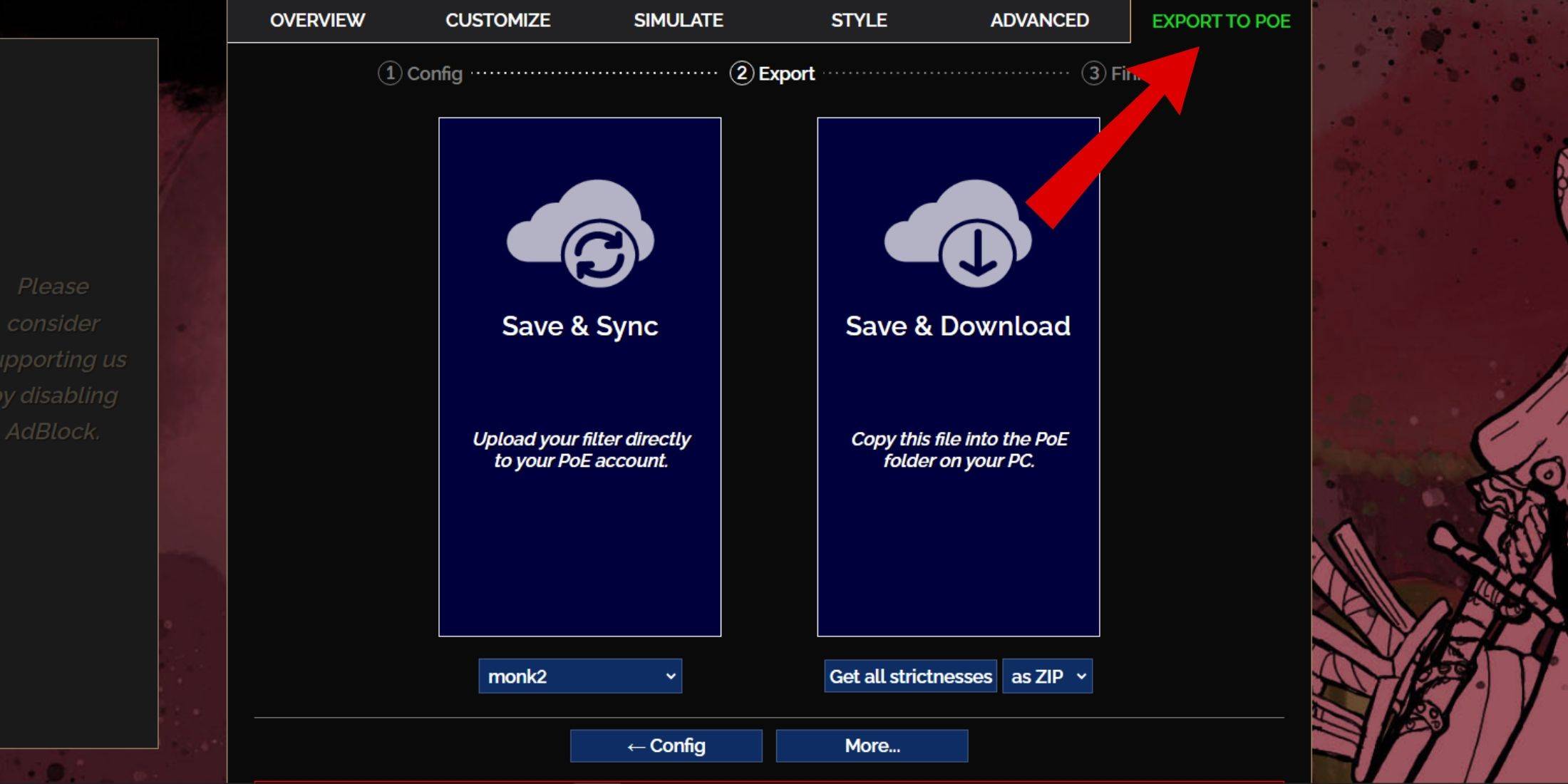
- Access the FilterBlade website.
- Select "PoE 2."
- The default "NeverSink" filter will be pre-selected.
- Adjust the strictness level using the slider (explained below).
- Navigate to the "Export to PoE" tab (top right).
- Name your filter.
- Click "Sync" or "Download":
- Sync: Automatically uploads the filter to your PoE 2 account, updating automatically with author changes.
- Download: Saves the filter to your PC, allowing you to download various strictness levels for comparison.
- In PoE 2, go to Options -> Game.
- If you synced, select the FilterBlade filter from the Item Filter dropdown.
- If you downloaded, use the folder icon to locate your downloaded filter.
Which Loot Filter Strictness Should You Choose?
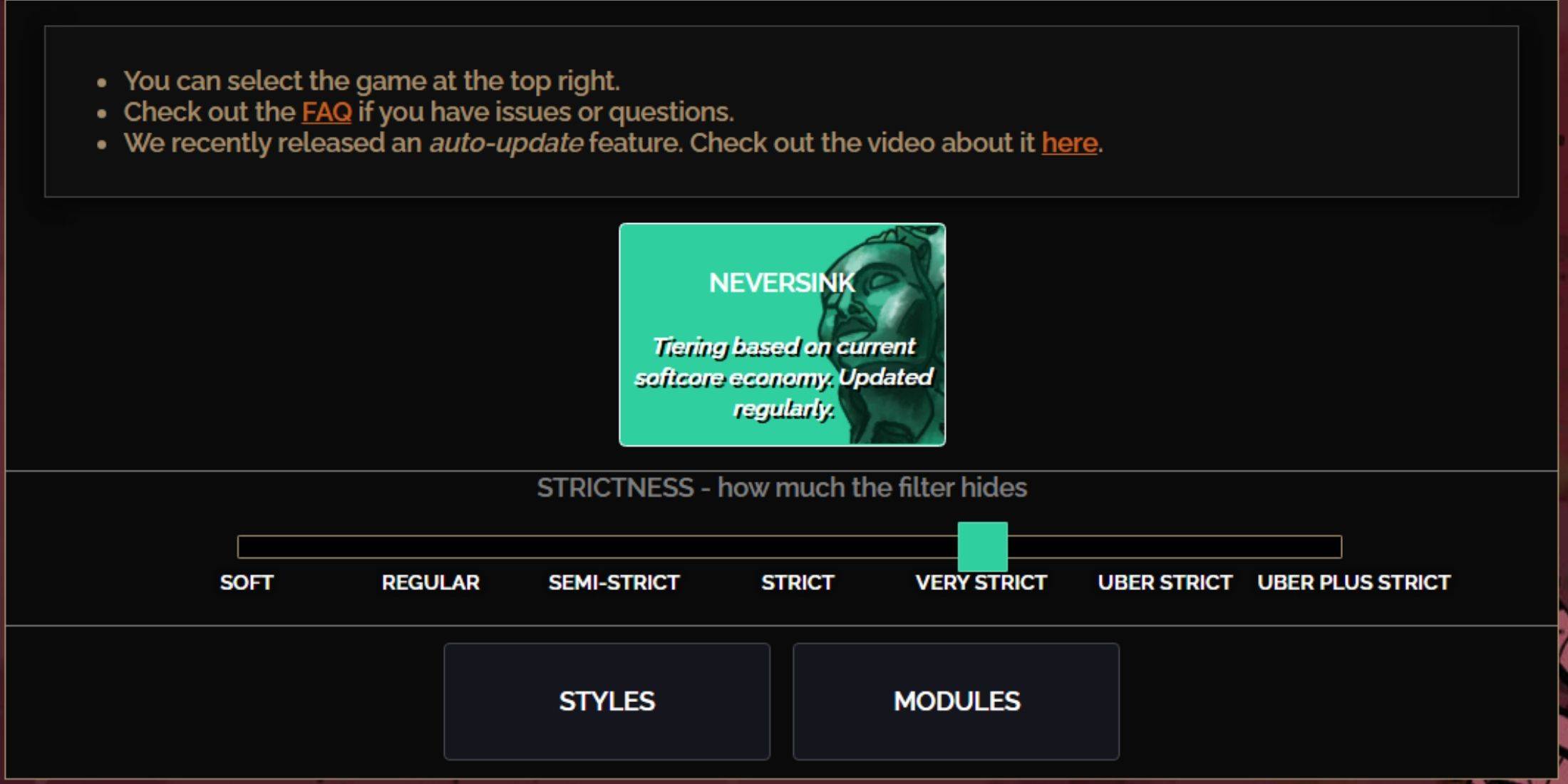
NeverSink's FilterBlade offers seven strictness levels:
| Strictness | Effect | Best For |
|---|---|---|
| Soft | Highlights valuable materials and items only. Shows everything else. | Act 1-2 |
| Regular | Hides only useless items. | Act 3 |
| Semi-Strict | Hides low-potential/value items. | Act 4-6 |
| Strict | Hides most items without high turnover. | Early Mapping (Waystones 1-6) |
| Very Strict | Hides low-value rares and crafting bases. Hides Waystones 1-6. | Mid-late Mapping (Waystones 7+) |
| Uber Strict | Hides almost all non-tiered rares and bases. Highlights high-value currency. Hides Waystones 1-13. | Late Mapping (Waystones 14+) |
| Uber Plus Strict | Hides nearly everything except high-value currency and rares/uniques. Hides Waystones 1-14. | Ultra Endgame (Waystones 15-18) |
For returning players, "Semi-Strict" is a good starting point. "Soft" and "Regular" are suitable for fresh league starts. Pressing ALT (PC) reveals hidden items, often with reduced size for easier identification.
How to Customize FilterBlade Loot Filter in PoE 2
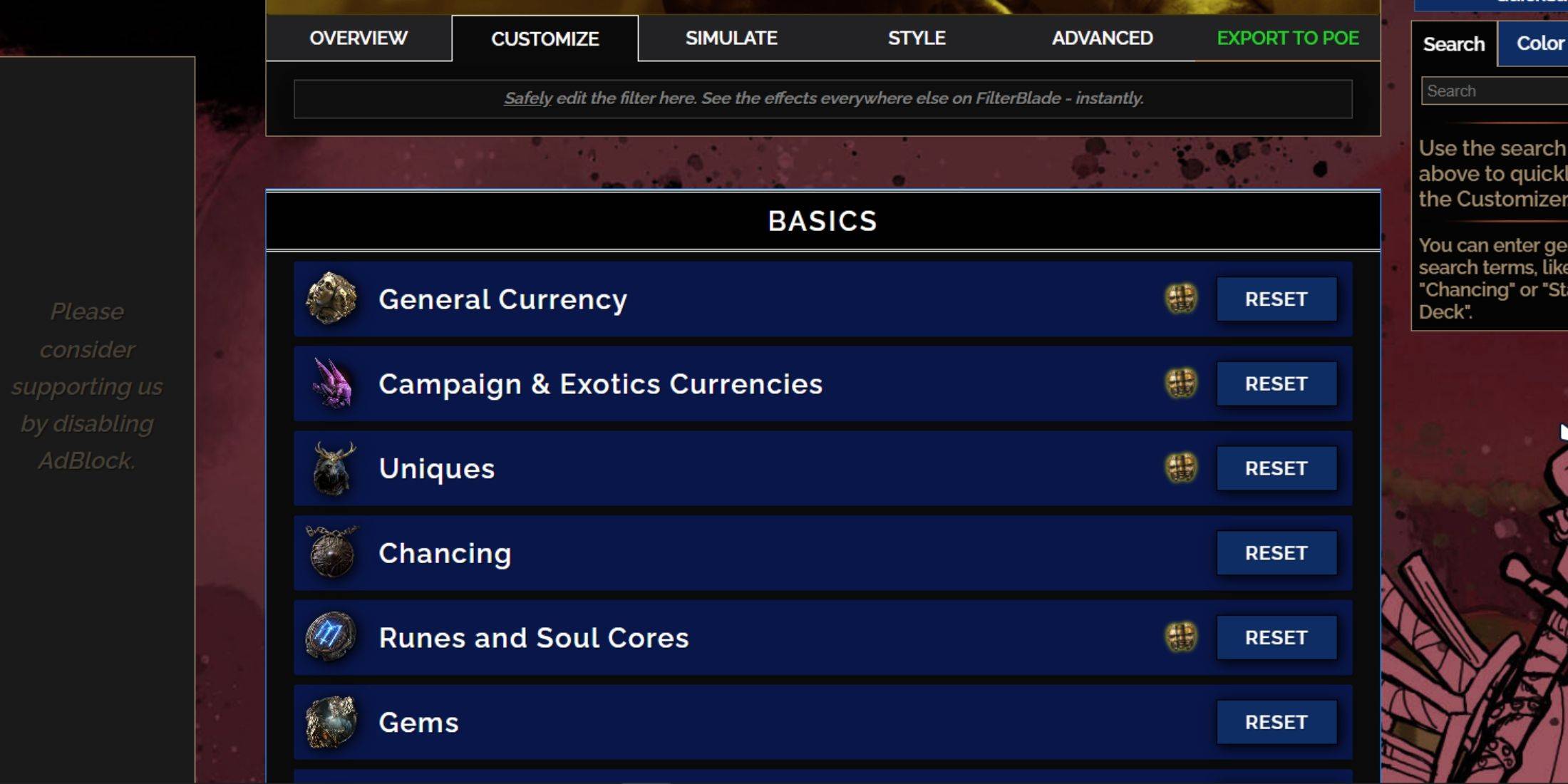
FilterBlade's strength lies in its easy customization without code editing.
Using the Customize Tab
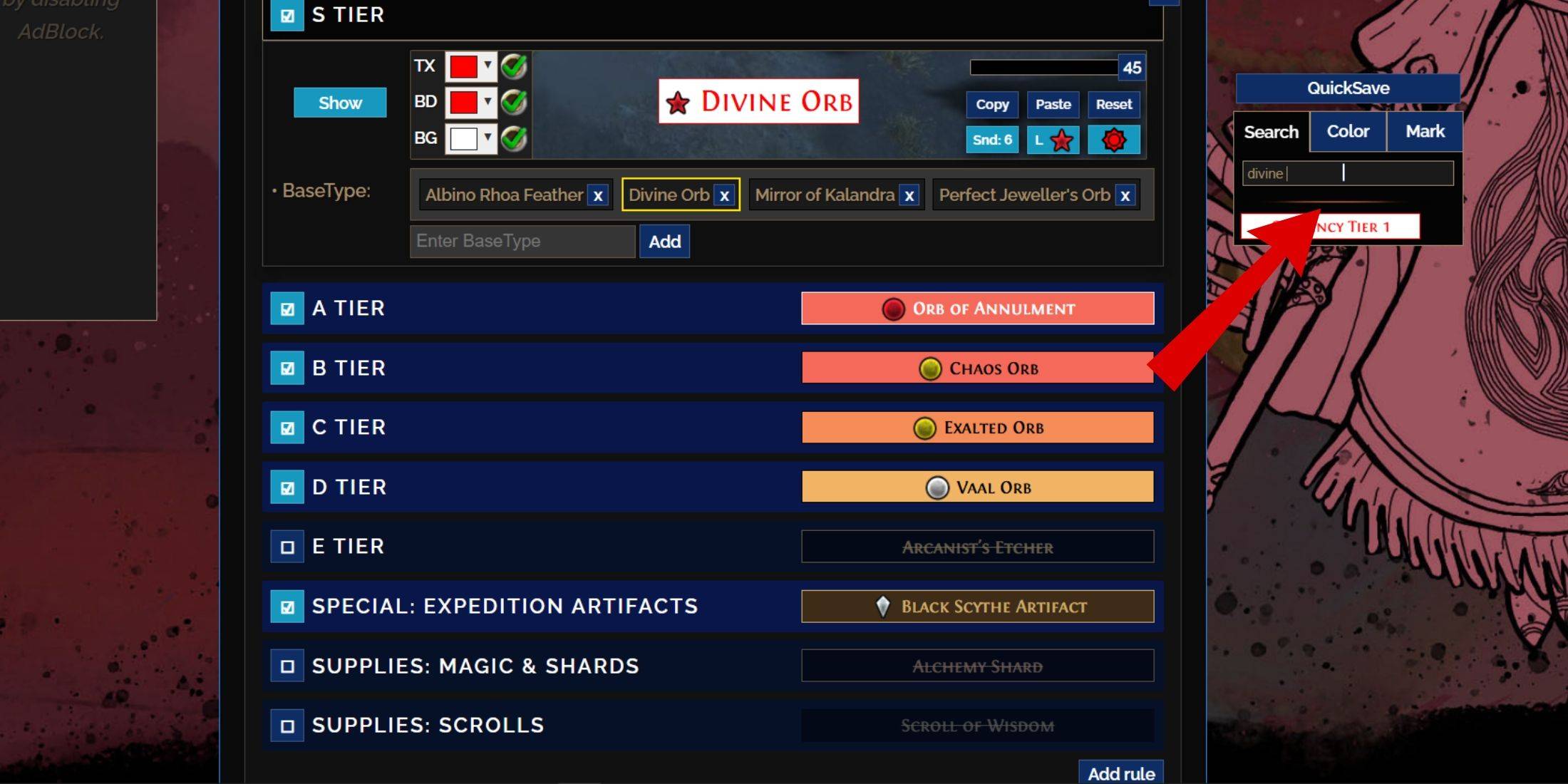
The "Customize" tab (next to "Overview") allows granular control over individual item drops. Search for an item (e.g., "Divine Orb") to access its customization options, including visual and audio previews.
Changing Colors and Sounds
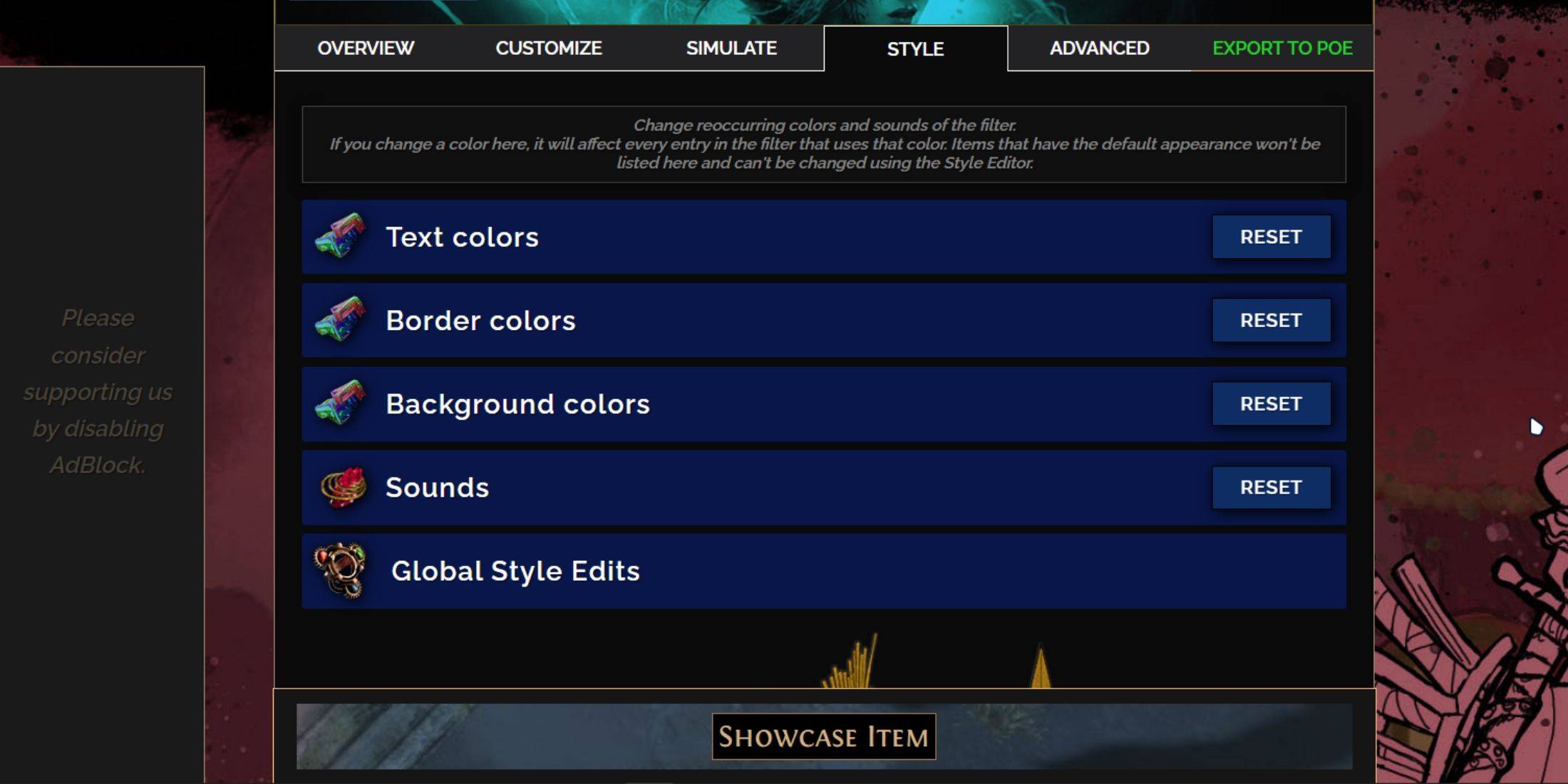
Customize individual item colors and sounds in the "Customize" tab. For filter-wide changes, use the "Styles" tab to adjust text, borders, backgrounds, and audio cues. You can even import custom sounds (.mp3). Experiment freely; the "Reset" option is always available. Explore community-created modules for pre-made visual/auditory adjustments.
-
 Jan 11,25Teamfight Tactics drops patch notes for final update of Inkborn Fables in version 14.14 Teamfight Tactics Patch 14.14: Final Inkborn Fables Update Details Unveiled! Get ready for the final chapter of Inkborn Fables in Teamfight Tactics with patch 14.14! Riot Games has revealed exciting changes, including a significant increase in encounter frequency and adjusted encounter rates. Prepa
 -
 Feb 11,25Pokémon Go Celebrates New Year's 2025 Pokémon Go Rings in 2025 with a Festive New Year's Event and More! As 2024 concludes, Niantic is celebrating the arrival of 2025 in Pokémon Go with a special New Year's event. This precedes the Fidough Fetch event and the highly anticipated Sprigatito Community Day. Kicking off the new year is the
 -
 Jun 14,25Pokémon Launches Real Pokédex Encyclopedia Crafted by Ecologists and Behaviorists Get ready, Pokémon fans—The Pokémon Company is stepping into the world of science with a brand-new official encyclopedia written by expert animal ecologists and behaviorists. Discover what Pokécology has in store for trainers and researchers alike.Pokécology: An Official Encyclopedia For Pokémon Beh
 -
 May 05,25Pokémon Go Tour: Unova Reveals Exciting New Details Get ready for an exciting journey as the Pokémon Go Tour: Unova approaches, bringing a host of new features and updates to the game. Whether you're a fan of new music, exclusive avatar items, or thrilling Special Research, there's something for everyone as you dive into the world of Unova and its Po